 Mochi Style
Dress up games for kids: a parent's checklist
Eight things worth checking before your child taps install, with the exact settings to look for on Android.
In this guide
Before your child plays a dress up game, check eight things: who it is made for, how ads work for children, how purchases are handled, whether there is chat or an account, what data leaves the phone, whether mystery boxes show their odds, where outside links lead, and how to delete the data. Most of these take a minute to check in the store listing, the privacy policy and the Google Play settings.
Dress up games for kids are one of the gentlest kinds of game a child can play. There is no fighting, no losing a life, just clothes, colours and a lot of creativity. Still, "free" games are paid for somehow, and it helps to know how before your child gets attached to a favourite doll.
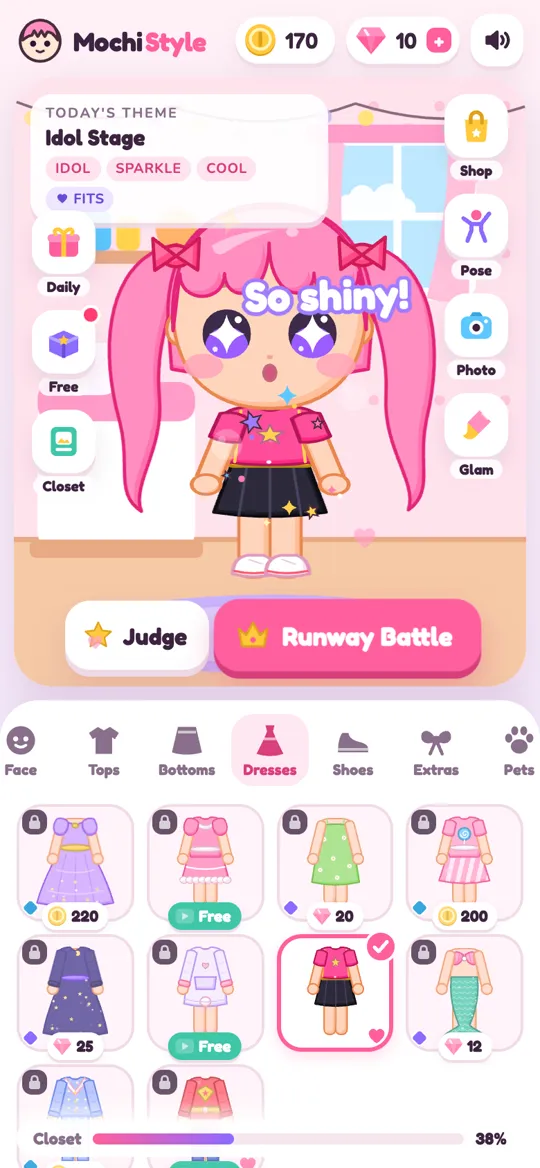
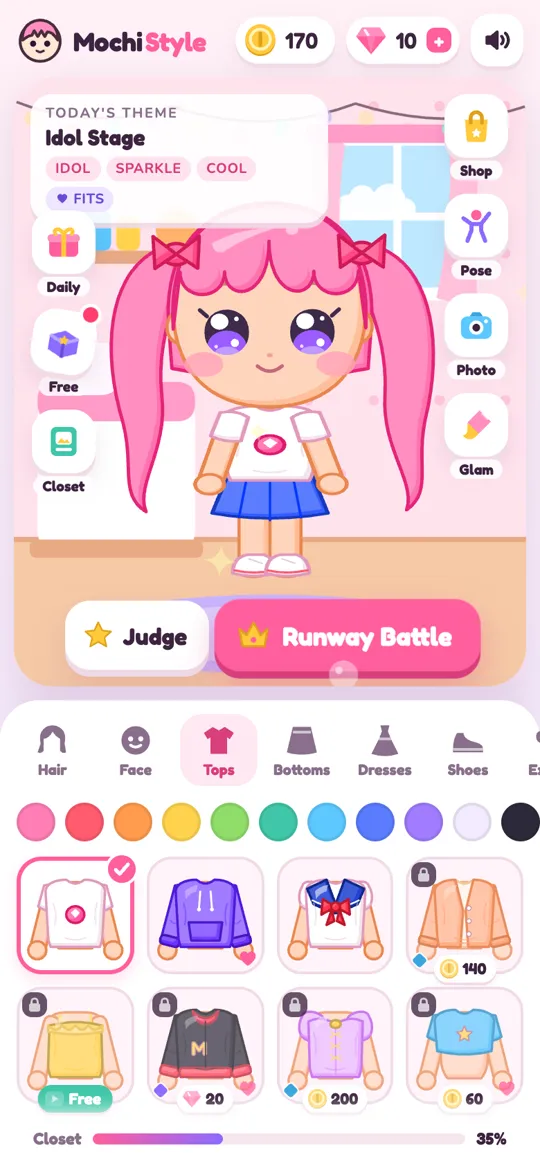
This checklist is what we use ourselves when we look at a kids game, including our own. We use Mochi Style as the example throughout, so you can see what each answer looks like in practice. The same questions work for any dress up app.
The 8-point checklist
- Who is the game made for? Check the age rating and the store description.
- How do ads work for children? Look for child-directed, non-personalised ads for under-13s.
- How are purchases handled? Make sure purchases go through Google Play and can be locked.
- Is there chat or an account? Fewer social features mean fewer things to supervise.
- What data leaves the phone? The privacy policy should say this in plain words.
- Do mystery boxes show their odds? Surprise items are fun when the odds are clear.
- Where do outside links go? Links out of the game should sit behind a parental gate.
- Can you delete the data? There should be a simple way to wipe everything.
The sections below explain what a good answer looks like for each one.
Ads, purchases and money
Ads. Most free games show ads. What matters is how. A well-built kids game asks for the player's age and treats under-13 players differently: their ads are marked as directed to children, limited to all-ages content and not personalised.
In Mochi Style the game asks for a birth year when it first opens. That answer stays on the device and decides how ads work. Players under 13 get child-directed, G-rated, non-personalised ads. Ads never appear while your child is dressing the doll, and some ads are short videos your child chooses to watch to unlock an item or get extra coins.
Purchases. Look for purchases that are handled entirely by Google Play, so the game never sees payment details. Then lock them on your side too:
- Open the Google Play Store app on the phone.
- Tap your profile picture, then Settings.
- Open Authentication and choose Require authentication for purchases for all purchases.
- For extra control, open Family, then Parental controls, and set content ratings that suit your child.
Mochi Style offers optional purchases for gems, outfit packs and removing break ads. With authentication on, none of them can happen without your password or fingerprint.
Chat, accounts and data
Chat and accounts. Many games add friend lists and chat to keep players coming back. For young children that is one more thing to supervise. A dress up game does not need it. Mochi Style has no accounts and no chat at all, so there is nobody for your child to talk to inside the game.
Data. Read the privacy policy, or at least skim the headings. You want to see where game progress is stored and what, if anything, is sent to the developer. In Mochi Style the doll, outfits, coins, photos and settings are saved only on the device, and the developer never sees them. You can read the full privacy policy in a few minutes.
Deleting data. A good game makes this easy. In Mochi Style you can wipe everything from Settings, Delete my data, or simply by uninstalling. Our delete your data page explains both ways.
Mystery boxes and surprise items
Surprise boxes are popular in dress up games because opening one feels like a present. The question is whether your child knows what they might get.
Check for two things:
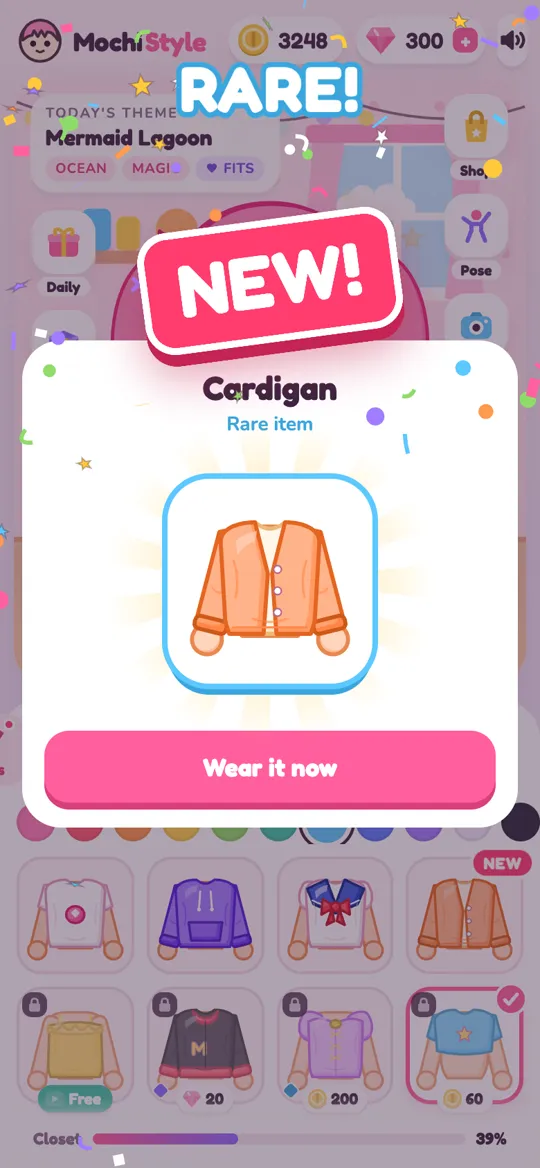
- Odds shown before opening. Mochi Style shows the odds for its free mystery outfit box, and the Dress Drop in runway battles has its own Odds link.
- How you get boxes. In Mochi Style the mystery box is free. Coins come from play, the judges, daily gifts and optional videos, and gems can also be bought with an optional purchase.
If you want to see what a runway battle looks like before your child plays, our runway battle guide walks through every step.
Outside links and parental gates
Some kids games link to other apps, social media or a website. Those links should not be one tap away for a child. Look for a "parental gate", a small question or task meant for a grown-up, before any link leaves the game. In Mochi Style, links that leave the game are behind a parental gate.
Make it a shared activity
The best part of a dress up game is the creativity. A few easy ways to join in:
- Ask your child to dress the doll for a theme you choose, like a birthday party or a rainy day.
- Pick a theme together and compare looks. Our Idol Stage outfit ideas are a good place to start.
- Use photo mode to save favourite looks to the album, then talk about which colours they picked and why.
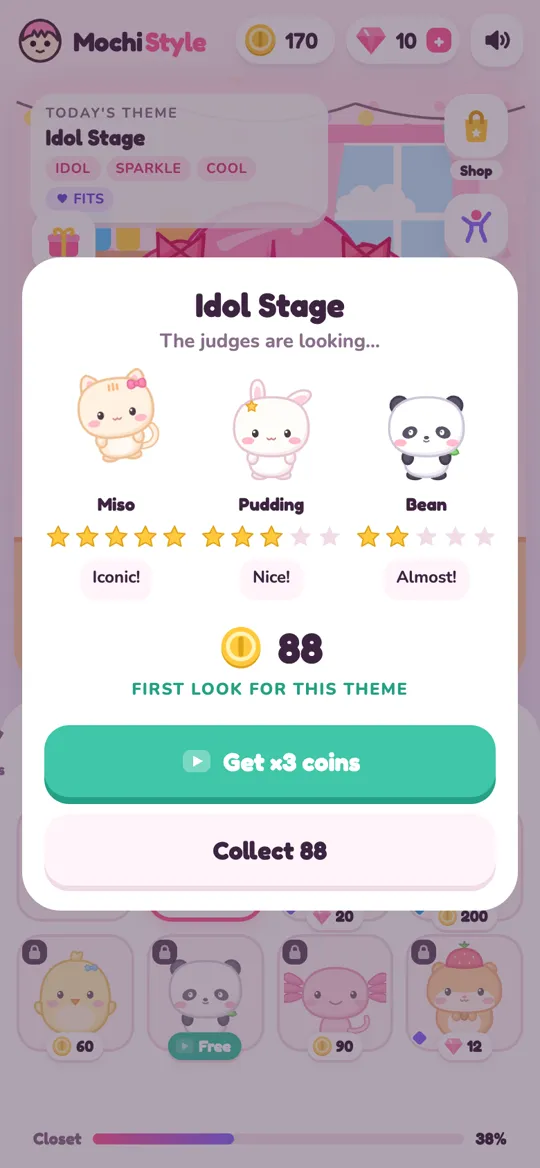
Short, shared sessions like these turn screen time into a little design lesson, and you will learn a lot about your child's taste along the way.
FAQ
Is Mochi Style safe for young children?
Mochi Style has no accounts and no chat, saves progress only on the device, shows child-directed non-personalised ads to players under 13 and keeps outside links behind a parental gate. As with any game, we suggest you look at it together first.
Can my child buy things by accident?
Purchases in Mochi Style go through Google Play. If you turn on Require authentication for purchases in the Play Store settings, every purchase needs your password or fingerprint before it can go through.
Does Mochi Style collect my child's data?
The game saves the doll, outfits, coins and photos only on the device and the developer never sees them. Ads are provided by Google AdMob, and for players under 13 those ads are not personalised.
How do I delete my child's game data?
Open Settings in the game and choose Delete my data, or uninstall the app. Either way the saved doll, outfits and progress are removed from the device.