 Mochi Style
How to turn off in-app purchases on Google Play
Android has no single off switch, but two settings together stop surprise buys. Here is how to set them up and check they work.
In this guide
Google Play has no button that removes in-app purchases completely. Instead, open the Play Store, tap your profile picture, go to Settings, then Authentication, and require authentication for all purchases on this device. Every purchase then needs your Google password or fingerprint. If your child has their own Google account, add purchase approvals in Family Link too, so each paid item needs your yes.
A free game can still sell things. Gems, outfit packs and "no ads" upgrades are all paid through Google Play, and a quick tap from a small finger is all it takes if the phone is not locked down.
The good news is that the way to turn off in-app purchases on Google Play, in practice, takes about two minutes. This guide shows the exact settings, explains what each one does and how to test it, and covers what to say to your child. We use our own game, Mochi Style, as the example, because we know exactly how its shop works.
Why there is no single "off" switch
On Android, games do not take payments themselves. When someone taps a buy button, the game hands the request to Google Play, and Google Play shows its own payment sheet. That is good news for parents: the controls live in one place, the Play Store, and they cover every game and app on the phone.
What Google Play gives you is not an off switch but a lock. You decide who is allowed to confirm a payment. If only you know the password, or only your fingerprint is enrolled, a child can open a shop and look around, but they cannot finish a purchase.
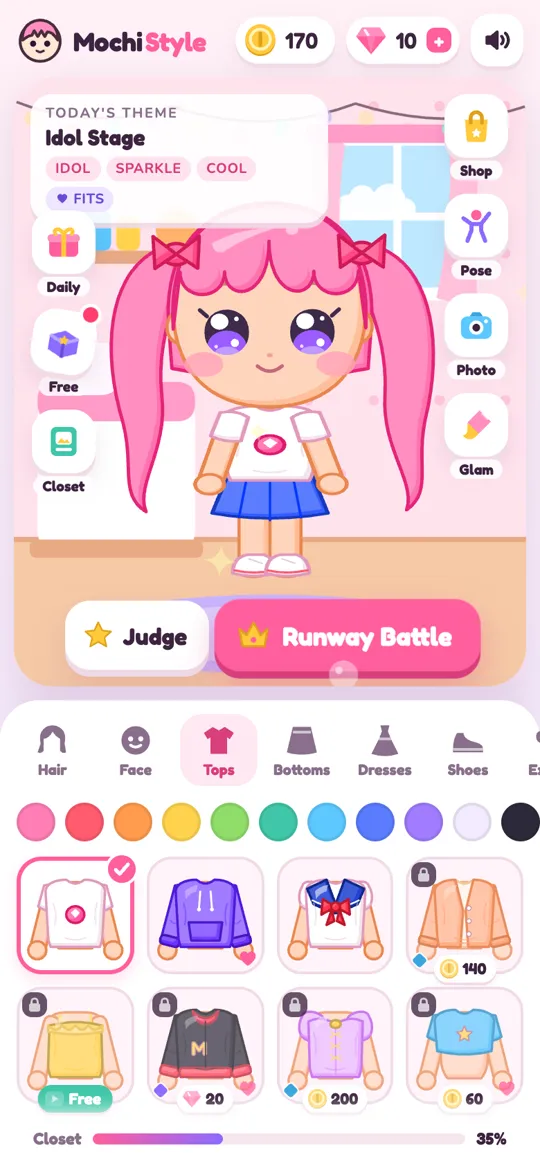
In Mochi Style, for example, the paid offers sit in the Shop under the Gems, Packs and Special tabs, plus a Remove break ads row in Settings. Every one of them opens the Google Play payment sheet, so the setting below covers all of them.
Step by step: lock every purchase on the phone
Do this on the phone or tablet your child uses, while signed in with the Google account that holds the payment method.
- Open the Play Store app.
- Tap your profile picture in the top corner.
- Tap Settings.
- Open Authentication. On some phones it sits under a section called User controls.
- Tap Require authentication for purchases.
- Choose For all purchases through Google Play on this device.
- Enter your Google password to save the change.
- Optional: turn on Biometric authentication if you want to approve purchases with your own fingerprint. Only do this if your child's fingerprint is not saved on the device.
Menu names change a little between Play Store versions, so if you do not see the exact words, look for "authentication" or "purchase" in Settings. Google's own help page on purchase verification always has the current wording.
Add Family Link if your child has their own account
If your child signs in with their own Google account, managed through Google Family Link, you get a second layer. In the Family Link app, open your child's profile, find the Google Play controls and turn on purchase approvals. You can usually choose to approve all content, only paid content or only in-app purchases.
With approvals on, a purchase request pops up on your phone and you say yes or no. Your child never sees your password at all. This works well for older children who have their own tablet.
If your child just borrows your phone or a shared family tablet, the authentication setting above is the one that matters most, because purchases are charged to your account.
Test it before you hand the phone over
A setting you have not tested is a setting you are guessing about. Here is a safe way to check it, using any game with a shop:
- Open the game and go to its shop. In Mochi Style, tap the Shop button or the gem counter at the top.
- Tap any paid offer to open the Google Play payment sheet.
- Tap Buy on the sheet. Google Play should now ask for your password or fingerprint.
- Do not enter it. Close the sheet or tap back instead.
- The game should say the purchase was canceled. In Mochi Style a small message reads "Purchase canceled" and "No money was taken".
If Google Play did not ask you for anything at step 3, go back to the settings and check that you chose the "all purchases" option.
Coins, gems and real money: explain the difference
Most free games have two kinds of "money", and children often mix them up. It helps to explain it once, with the game open.
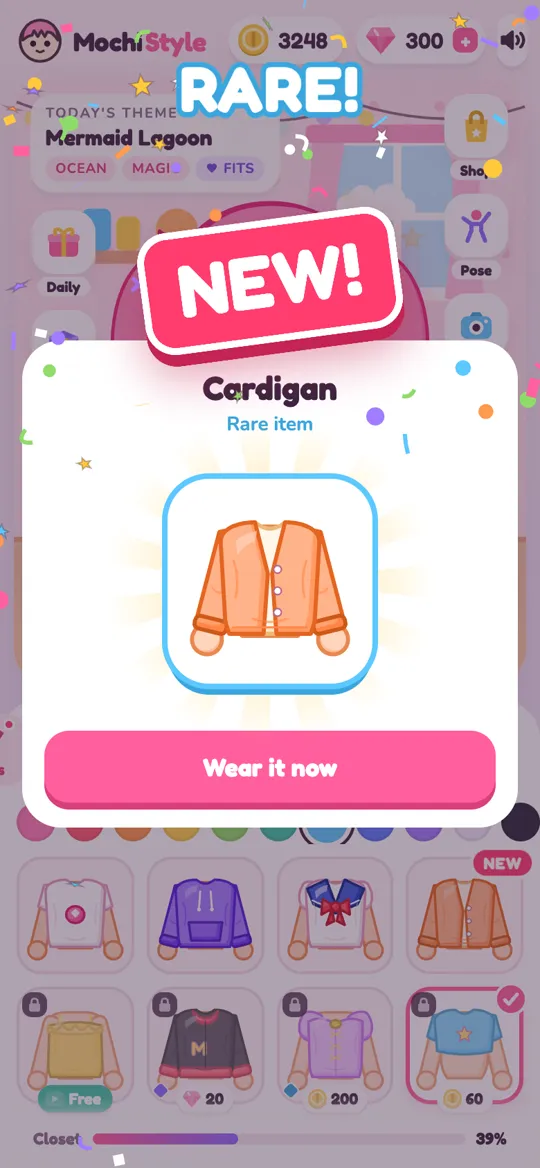
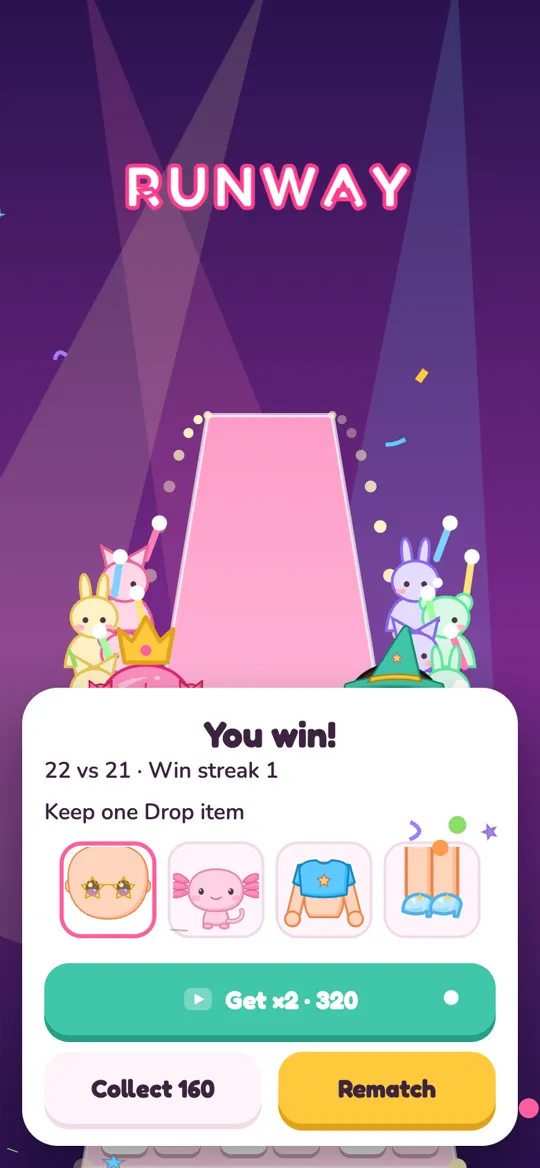
- In-game currency is earned by playing. In Mochi Style, the judges and runway battles pay out coins, daily gifts add more, and you can unlock outfits with coins or gems you already have.
- Real money only moves when Google Play shows its payment sheet with a price. With authentication on, that sheet always stops and asks a grown-up.
A good rule for kids: "If a Google Play box pops up, bring me the phone." Simple, and it works for every app.
Optional reward videos are a separate thing again. They cost nothing; the player just chooses to watch a short ad for a bonus. Our guide to how child-directed ads work explains how those videos behave for players under 13.
If a purchase slips through anyway
Mistakes happen, especially before the settings were on. A few things are worth knowing:
- Check your order history. In the Play Store, open your profile, then Payments and subscriptions, then Budget and history, to see every purchase on the account.
- Ask Google Play for a refund. Google has a refund request form for Play purchases, and the order history page links to it. Requests are reviewed case by case, so explain what happened.
- Restore what was bought. If you reinstall a game or move to a new phone, one-time purchases can usually come back. In Mochi Style, open Settings and tap Restore purchases.
- Turn the lock on now, using the steps above, so it does not happen again.
For the wider picture beyond purchases, including chat, mystery boxes and data, our parent checklist for dress up games covers it in one place. Our privacy policy also explains that purchases are handled by Google Play, so the game never sees your payment details.
FAQ
Can I turn off in-app purchases completely on Android?
Not with one switch. Google Play lets you require a password or fingerprint for every purchase on the device, which has the same effect for children who do not know your password. Family Link adds approval requests on top.
Does the Google Play password setting work for all games?
Yes. Paid items in Android games and apps go through Google Play, so one setting in the Play Store covers every app on that device signed in with your account.
Does Mochi Style need in-app purchases to play?
No. Mochi Style is free to play. Coins come from the judges, runway battles and daily gifts, and optional reward videos can unlock extras. Purchases for gems, outfit packs and removing break ads are optional.
What happens if my child taps a buy button with authentication on?
Google Play opens its payment sheet and asks for the account password or fingerprint. Without it, nothing is charged. In Mochi Style the game then shows a "Purchase canceled" message saying no money was taken.
Should I use the 30-minute authentication option?
For a phone that children use, no. After one approved purchase, the 30-minute option lets more purchases through without asking. Choose the option that asks for every purchase instead.